Fix Issue
//Open command line bypass proxy
setx _JAVA_OPTIONS -Djava.net.preferIPv4Stack=true


Reset Eclipse OK!


The Mysteries of Humanity: Leonardo da Vinci

The Unsung Hero: Nikola Tesla

The Wizard of Light: Thomas Edison

Adolf Hitler: The Master Manipulator
//Open command line bypass proxy
setx _JAVA_OPTIONS -Djava.net.preferIPv4Stack=true


java.lang.OutOfMemoryError: Java heap spaceFollowing are the steps to increase JVM heap size in Eclipse:
Step 1 - Bước 1
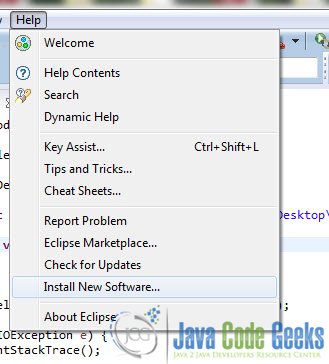
Open Eclipse and in the toolbar menu, go to Run -> Run Configurations…
 Step 2- Bước 2
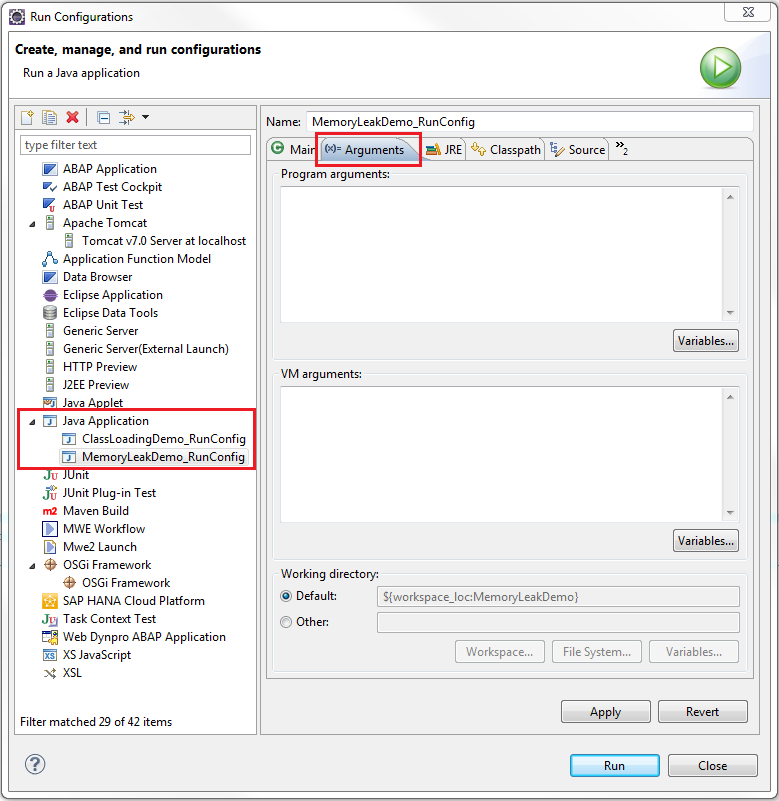
In the left pane of Run Configurations window, navigate to the Java Application node and select the Java application for which you need to increase the heap size. Then in the right pane, click on the Arguments tab.
Step 2- Bước 2
In the left pane of Run Configurations window, navigate to the Java Application node and select the Java application for which you need to increase the heap size. Then in the right pane, click on the Arguments tab.
 In the VM Arguments section, type the following arguments:
-Xms[CUSTOM_SIZE] – This means that your JVM will be started with Xms amount of memory
-Xmx[CUSTOM_SIZE] – This means that your JVM will be able to use a maximum of Xmx amount of memory.
For example,
-Xms512M – JVM will start with an initial memory size of 512 MB
-Xmx1024M – and can use up to a maximum of 1024 MB (or 1 GB).
Click on Apply button to save the changes.
 Note
Note
The memory settings for Java programs running in Eclipse are different from the memory settings for eclipse itself. For increasing or decreasing the amount of memory used by Eclipse, changes should be made in the eclipse.ini file and NOT in the Run Configuration.




BACK TO TOP